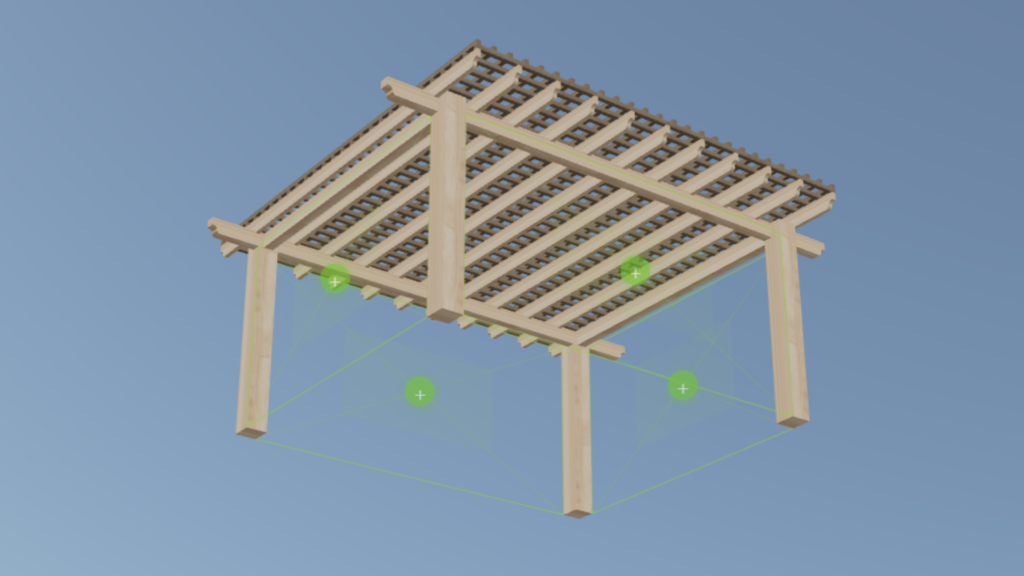
Planning a pergola has never been easier. This guide walks you through every feature of the 3D Pergola Calculator — from setting dimensions to adding decorative panels and downloading your material list.
No experience required. The calculator updates in real time as you make changes, so you can experiment freely before making any decisions.
Main menu


Opens the main settings panel where you configure your 3D structure — dimensions, post size, beam spacing, and other key options that define how your pergola is built.

Specification Opens the material list for your pergola. See every beam, post, and board needed to build your structure — with quantities and dimensions ready to take to the lumber yard.

Download 3D Model Exports your pergola as a .gltf file — a standard 3D format widely supported across design and visualization tools.
You can open it in:
- Blender — free 3D editor, great for rendering and customization
- Sketchfab — share and view 3D models online
- AutoCAD / Revit — for professional construction documentation
- iOS / Android — view in augmented reality using apps like Reality Composer or Google Scene Viewer
Useful for presentations, client approvals, or integrating into your own project documentation.

Dimensions Toggle Shows or hides the key measurements of your structure directly on the 3D model — overall width, length, height, and other critical dimensions.
Useful when you need a quick visual reference or want to take a clean screenshot without dimension labels.
Parameters panel
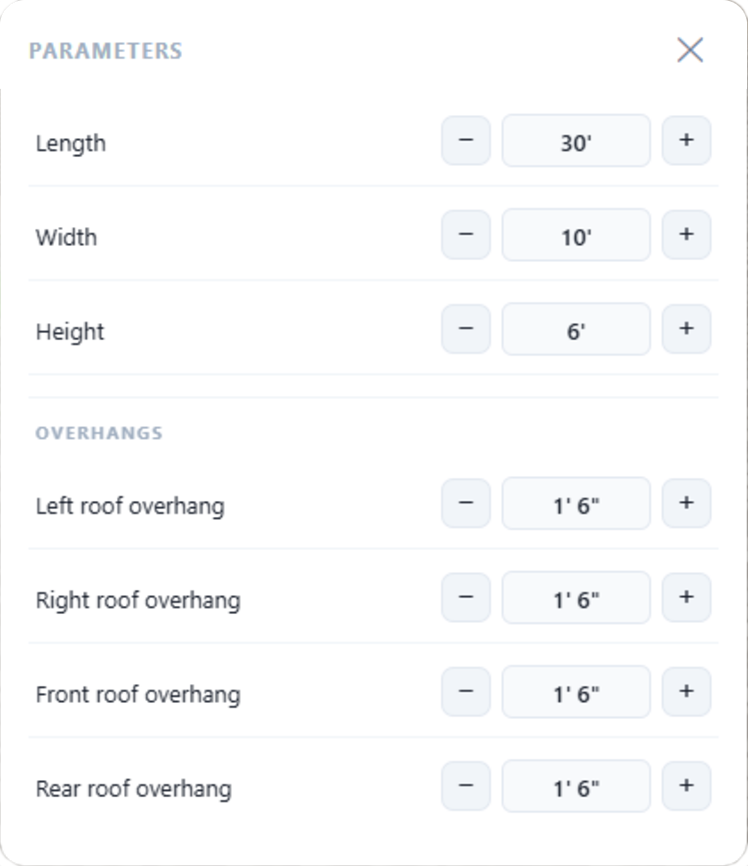
The main settings panel where you define the overall dimensions of your pergola.
Structure dimensions:
- Length — the long side of your pergola
- Width — the short side
- Height — from ground level to the top of the posts
Overhangs — how far the roof extends beyond the posts on each side:
- Left roof overhang
- Right roof overhang
- Front roof overhang
- Rear roof overhang
Use the − and + buttons to adjust each value. The 3D model updates instantly as you make changes.
Selecting elements
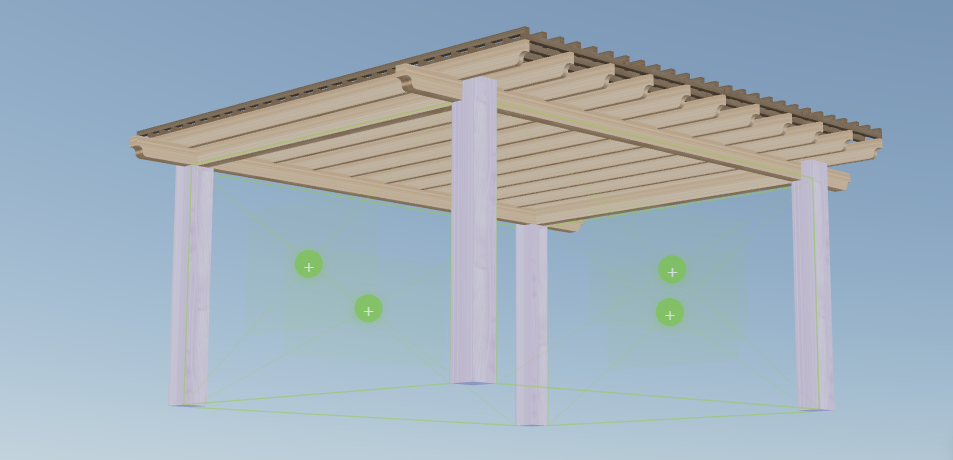
Click on any part of the 3D model to select a group of elements — posts, beams, or rafters will highlight in the model.
Some groups have additional settings available:
- Color — change the appearance of the selected group
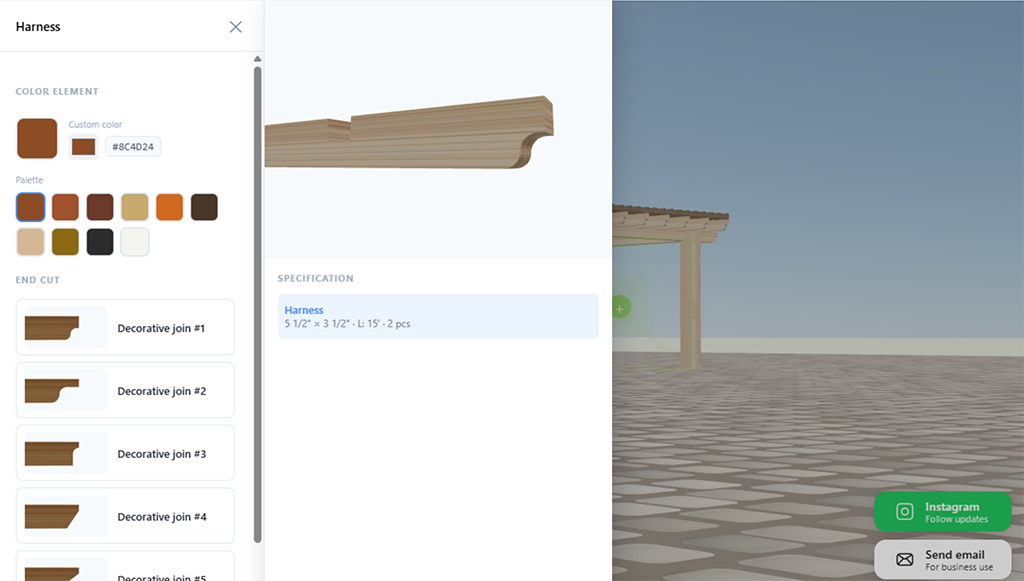
- Board size — choose the physical lumber dimensions (e.g. 2×6, 2×8)
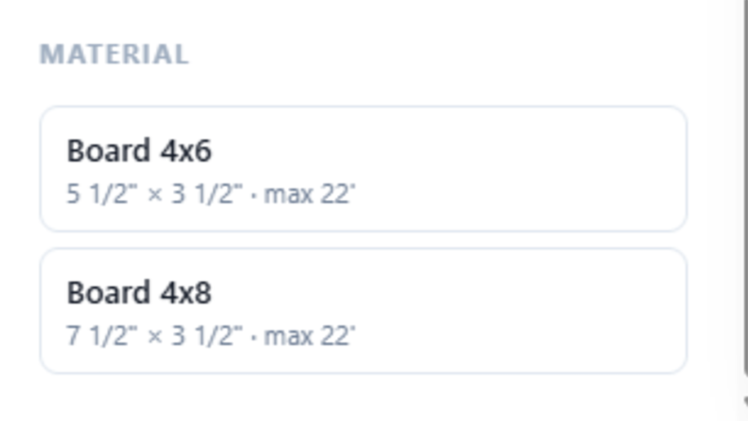
- Decorative ends — configure the style of board end cuts
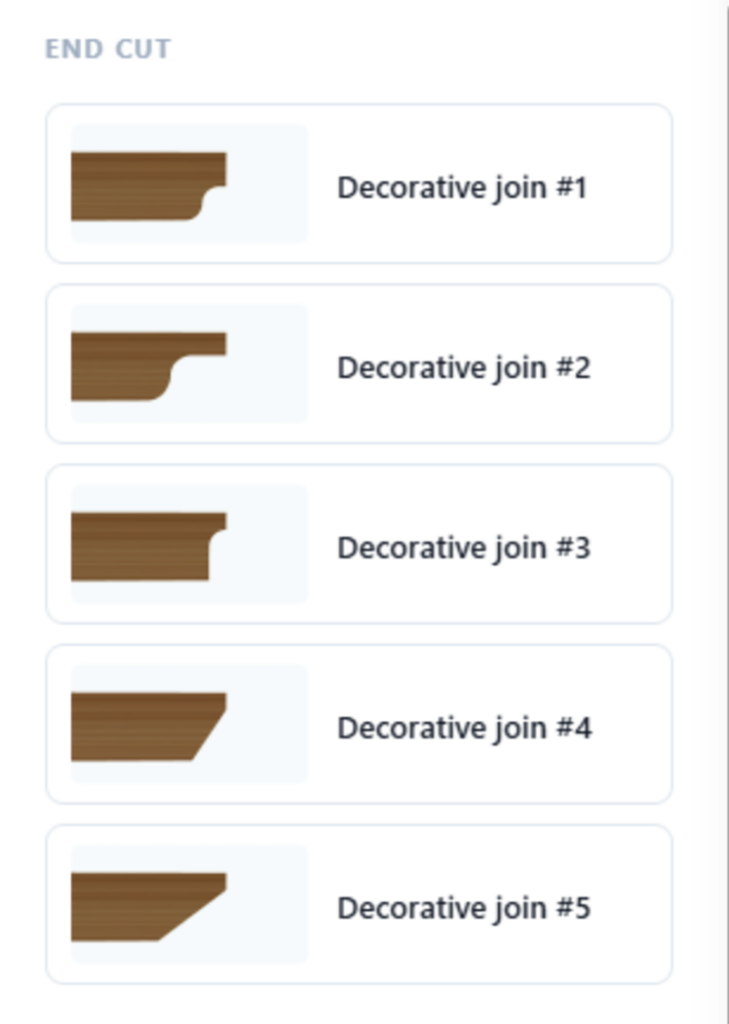
When you select a group, a dedicated editor opens with a detailed 3D preview of that specific board and all available options for that element.
This lets you customize individual parts of your pergola without affecting the rest of the structure.
Decorative Filler Panels
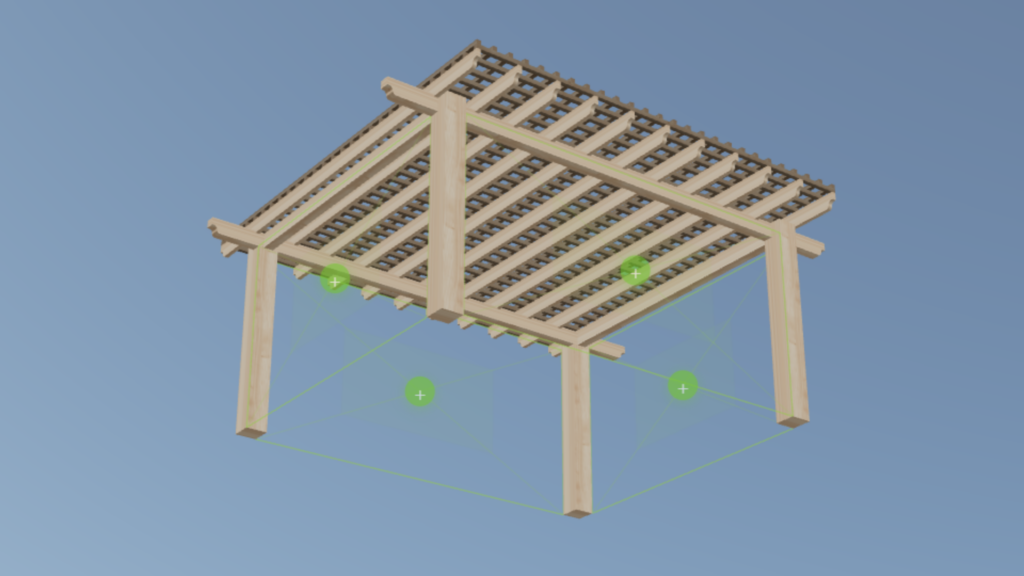
Green + buttons appear between the posts of your pergola. Click any of them to add a decorative panel to that opening.
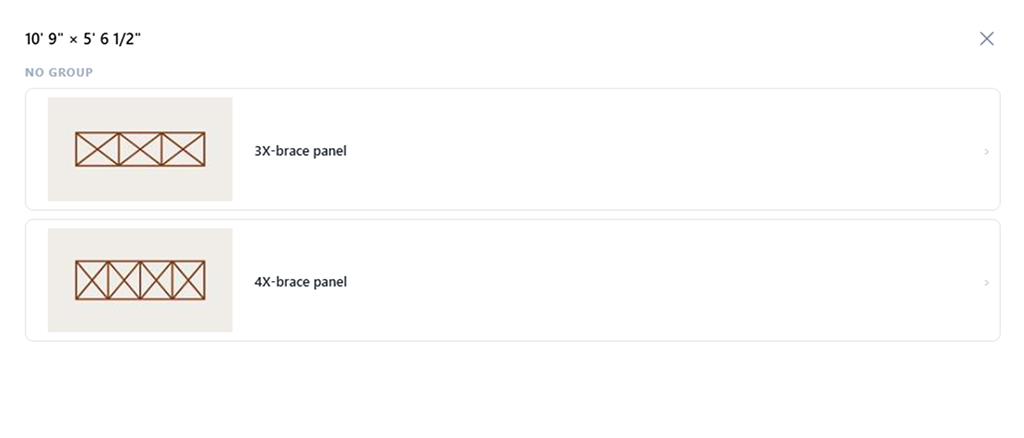
A selection panel opens showing all available styles — such as 3X-brace and 4X-brace panels. The panel size is calculated automatically based on the opening dimensions.
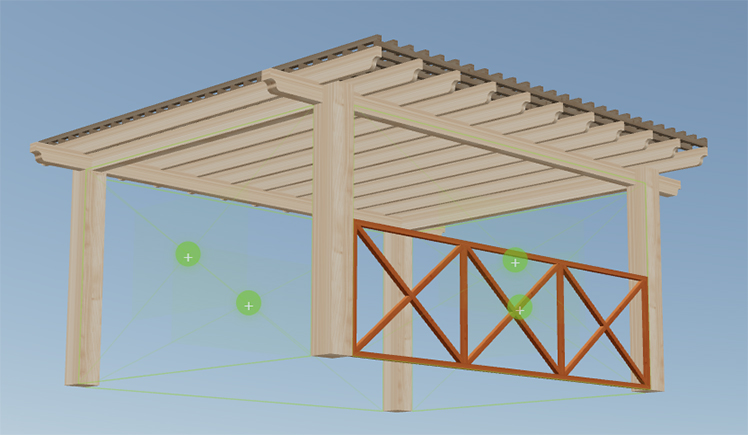
Once added, the filler panel behaves like any other element — you can change its color, adjust the board size, or remove it entirely by selecting it in the 3D model.
Filler panels are a great way to add privacy, visual interest, or a decorative finish to your pergola.